Freeing a Duracell DuraCharger with OCPP and Home Assistant
Our EV charger is a Duracell Energy DuraCharger, made for Duracell by PureDrive. It’s a perfectly good 7 kW charger let down by its software: the app and the cloud service behind it are slow, unreliable and can’t be automated. I wanted two things it couldn’t do:
- charge the car on the cheap overnight rate without me poking an app, and
- charge it from spare solar during the day, matching the charging current to whatever the panels are producing beyond what the house and battery need.
The second one matters because I already had the inverter connected to Home Assistant, so Home Assistant knows exactly how much solar is going spare at any moment.
The way in: OCPP
The charger talks to Duracell’s cloud using OCPP 1.6J (the Open Charge Point Protocol): a standard, JSON over WebSocket, used by most smart chargers. The charger connects out to a “central system” at a configured URL, and the central system sends it commands: start, stop, set a current limit.
The charger’s settings let you change exactly one thing that matters: the OCPP server address. Out of the box it
points at the vendor’s cloud (wss://ocpp16.evchargo.com:33033/<serial number>). Point it somewhere else and that
somewhere else is in charge.
Home Assistant can be that somewhere else. The community OCPP integration (installed from HACS) turns Home Assistant into an OCPP central system, listening on port 9000. So I set the charger’s server address to:
ws://<home-assistant-ip>:9000
The charger adds its own serial number to the end, which the integration uses as the charge point’s ID.
It connected, then fell over. Every minute.
The charger found Home Assistant straight away, and the integration created a charge point for it. But the connection never settled. Roughly once a minute it dropped and reconnected, and the logs filled with:
WARNING [custom_components.ocpp] No response to GetConfiguration for SupportedFeatureProfiles, defaulting to Core
The pattern in the debug log was the same each time: the charger connected and booted, answered a few requests within a second, then went silent. The integration’s WebSocket ping got no answer, timed out after 20 seconds, the connection was closed and the charger reconnected. The reconnect counter climbed past 30.
I was close to giving up on the integration. I even had a small standalone OCPP server written in Python running on my Mac, which answered everything and never pinged, ready to point the charger at instead. But the debug log had one more clue.
The real culprit: a long list of measurements
On connect, the integration’s “Automatic detection of OCPP Measurands” option sends the charger a long list of
every measurement it might report (MeterValuesSampledData), then reads the setting back. The charger accepted the
long list, and then froze when asked to read it back. Every request after that went unanswered, including the ping.
The fix was in the charge point’s settings in Home Assistant (Settings → Devices & services → OCPP → the charger → Reconfigure):
- Untick Automatic detection of OCPP Measurands.
- On the next screen, tick only these four:
Energy.Active.Import.Register: the kWh meterPower.Active.Import: power going to the carCurrent.Import: current going to the carVoltage
With the short list, the charger stayed connected and kept answering. I’d also tried turning the ping off along the way; that wasn’t the cause, and an interval of 0 actually made the integration ping constantly. In the central system’s settings I settled on:
| Setting | Value |
|---|---|
| WebSocket ping interval | 60 s |
| WebSocket ping timeout | 30 s |
| Successive tries before closing | 3 |
| OCPP version | 1.6 |
Since then the connection has been reliable, and it comes back on its own after a power cut or a tripped breaker.
What the charger can do over OCPP
The charger reports the Smart Charging profile, which is the important one: it means it accepts current limits. I tested it with the car plugged in:
| Step | Command | Result |
|---|---|---|
| Start | RemoteStartTransaction |
Ramped to 30.5 A over about 70 s |
| Limit to 16 A | SetChargingProfile |
16.5 A within 10 s, held steady |
| Limit to 8 A | SetChargingProfile |
8.0–8.3 A within 10 s, held steady |
| Stop | RemoteStopTransaction |
0 A, status Finishing |
| Clear limit | ClearChargingProfile |
Accepted |
A new limit takes effect within about 10 seconds with no ramping, so following the solar output every 30 seconds is realistic. In Home Assistant all of this is just entities and actions:
switch.charger_charge_controlstarts and stops charging.ocpp.set_charge_ratewithlimit_ampssets the current, andocpp.clear_profileremoves the limit.- Sensors give the connector status (Available, Preparing, Charging, SuspendedEV…), current, power, the session’s energy and the lifetime meter.
The charger also sends a PureDrive-specific status report every minute (as an OCPP DataTransfer) with the pilot
voltage, internal temperature and a few other values. The integration accepts it but doesn’t turn it into sensors.
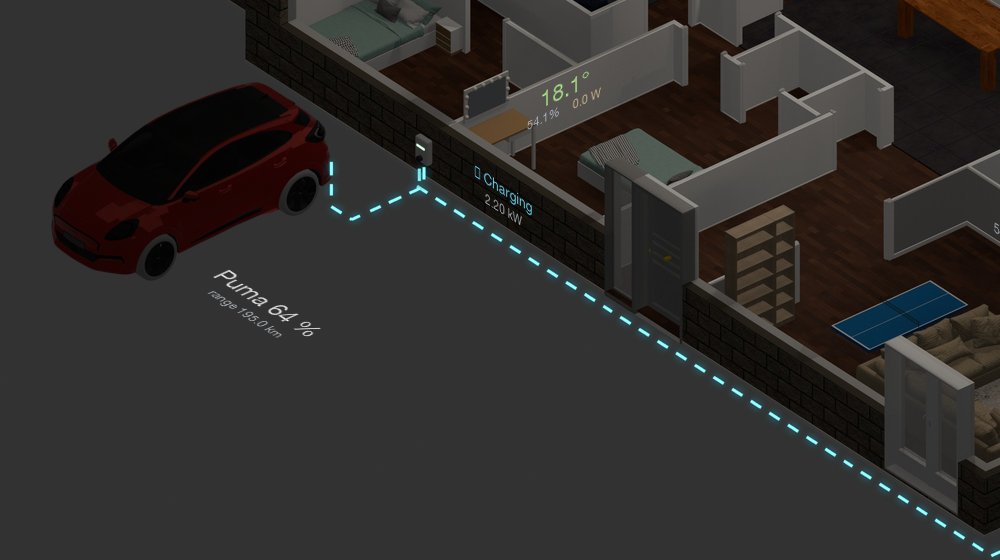 On my floorplan dashboard the charger shows its status, and a line runs to the car
while it charges.
Automation 1: charge overnight at full rate
We’re on Octopus Intelligent Go, with cheap electricity from 23:30 to 05:30. The Octopus Energy integration provides an off-peak binary sensor, so the automation is simple:
- Start when off-peak begins, or when the car is plugged in during off-peak: clear any current limit and turn on charge control.
- Stop when off-peak ends.
The car stops itself at 80%, so there’s no need to watch the state of charge. The first night it ran, it started at 23:31, settled at about 30.7 A (7.4 kW), stopped itself at 80% at 03:27 and was closed off at 05:31: 28.7 kWh for about £2.18, with nothing at the peak rate.
Automation 2: charge from excess solar
This is the one the vendor app could never do. The rule: only use solar that would otherwise be exported, never the battery or the grid.
- A template sensor, EV Solar Surplus, works out the spare solar from the inverter’s readings.
- Start when the home battery is effectively full (above 98%), at least 1.5 kW is spare for three minutes, and the car is plugged in.
- Every 30 seconds, set the current to match the surplus:
(surplus − 0.1 kW) ÷ grid voltage, clamped to 6–32 A, and only sent if it changed by at least 1 A. - Stop when the surplus falls below 1.35 kW for two minutes, the battery drops below 95%, or the car is unplugged.
- Hand over to the overnight automation if off-peak starts during a solar session.
The 6 A floor is part of the EV charging standard: below that a car won’t charge at all. On a single-phase supply that’s about 1.4 kW, which is why the automation pauses rather than trickling below it.
- alias: Track the surplus
  conditions:
    - condition: trigger
      id: adjust
    - condition: state
      entity_id: input_boolean.ev_solar_session
      state: "on"
    - condition: template
      value_template: "{{ (target - current_limit) | abs >= 1 }}"
  sequence:
    - action: ocpp.set_charge_rate
      data:
        limit_amps: "{{ target }}"
The extras
Once the charger was in Home Assistant, the rest came easily:
- Cost tracking. An automation adds up every kWh the charger delivers at the rate at that moment: the Octopus import rate for grid energy, and the export rate for solar sessions (the income I gave up by not exporting it). That gives a cost per session and per month.
- A plug-in reminder. At 6pm, or when the car gets home in the evening, if it’s below 40% and not plugged in, my phone gets a notification and the kitchen speakers announce it.
- Energy dashboard. The charger’s lifetime meter goes straight into Home Assistant’s Energy dashboard as a device.
Tips if you try this
- Check that your charger lets you change its OCPP server address. Without that, none of this works.
- Turn off automatic measurand detection if your charger connects and then goes quiet. Pick a short list yourself.
- Don’t set the ping interval to 0 in the OCPP integration. Use a sensible interval instead.
- Debug logging records the charger’s password. Turn it off once you’re done, and restart Home Assistant to clear the old log.
- The charger stops talking to the vendor’s cloud. That’s the point, but it also means the vendor app stops working for it. If you ever need the vendor (for a warranty claim, say), you should be able to point it back.